Buying Guide / 6 min read
Project and Visio license guide
Learn the practical differences between Project and Visio products and how to avoid activation mismatches.
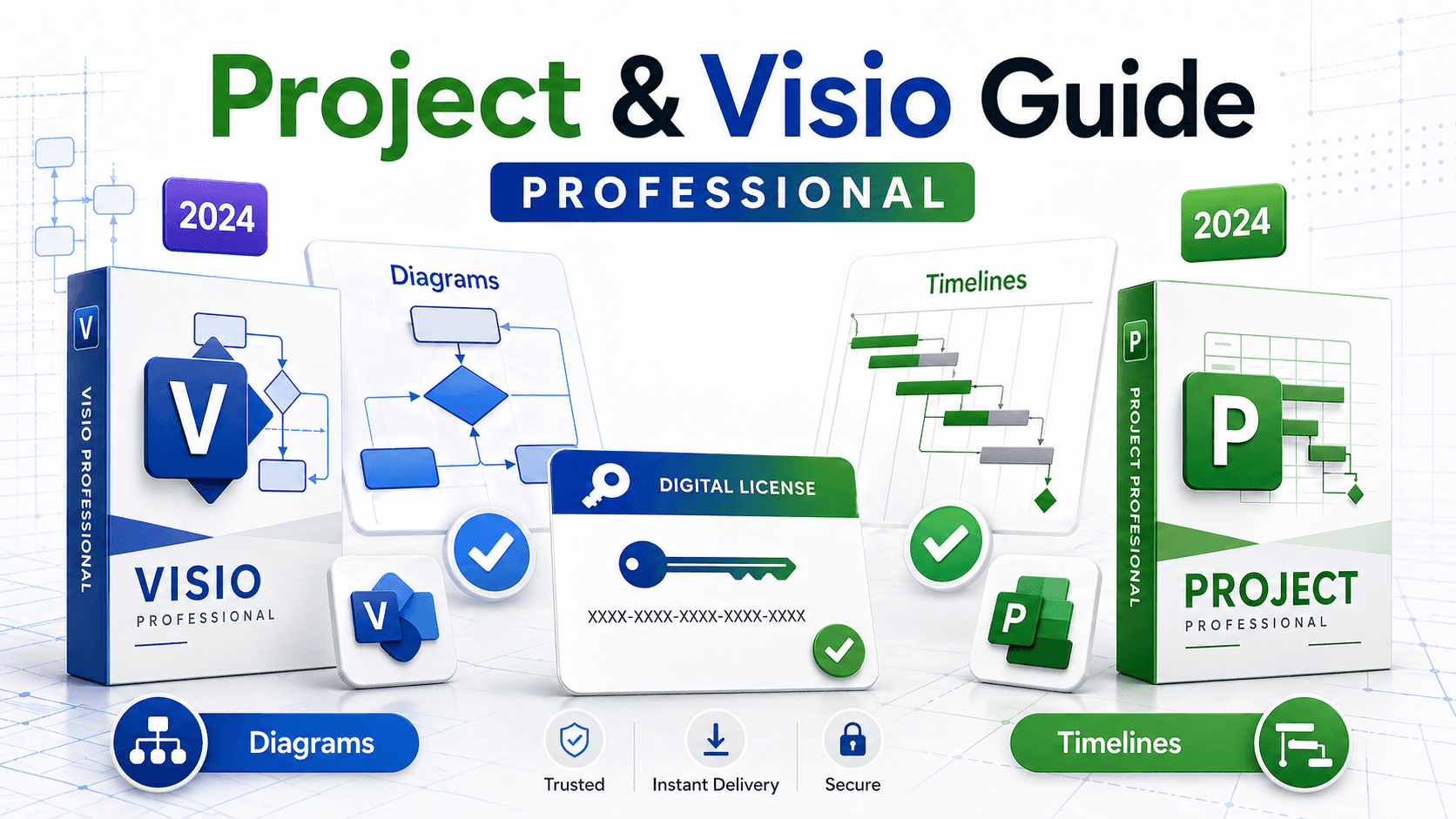
Project and Visio solve different jobs
Project is mainly used for schedules, tasks, timelines, and resource planning. Visio is mainly used for diagrams, flowcharts, network maps, and process documentation.
Choose by workflow first, then match the year and edition shown on the product page.
If your daily work is planning dates, dependencies, and team capacity, start with Project. If your work is drawing systems, floor plans, processes, or organization charts, start with Visio.
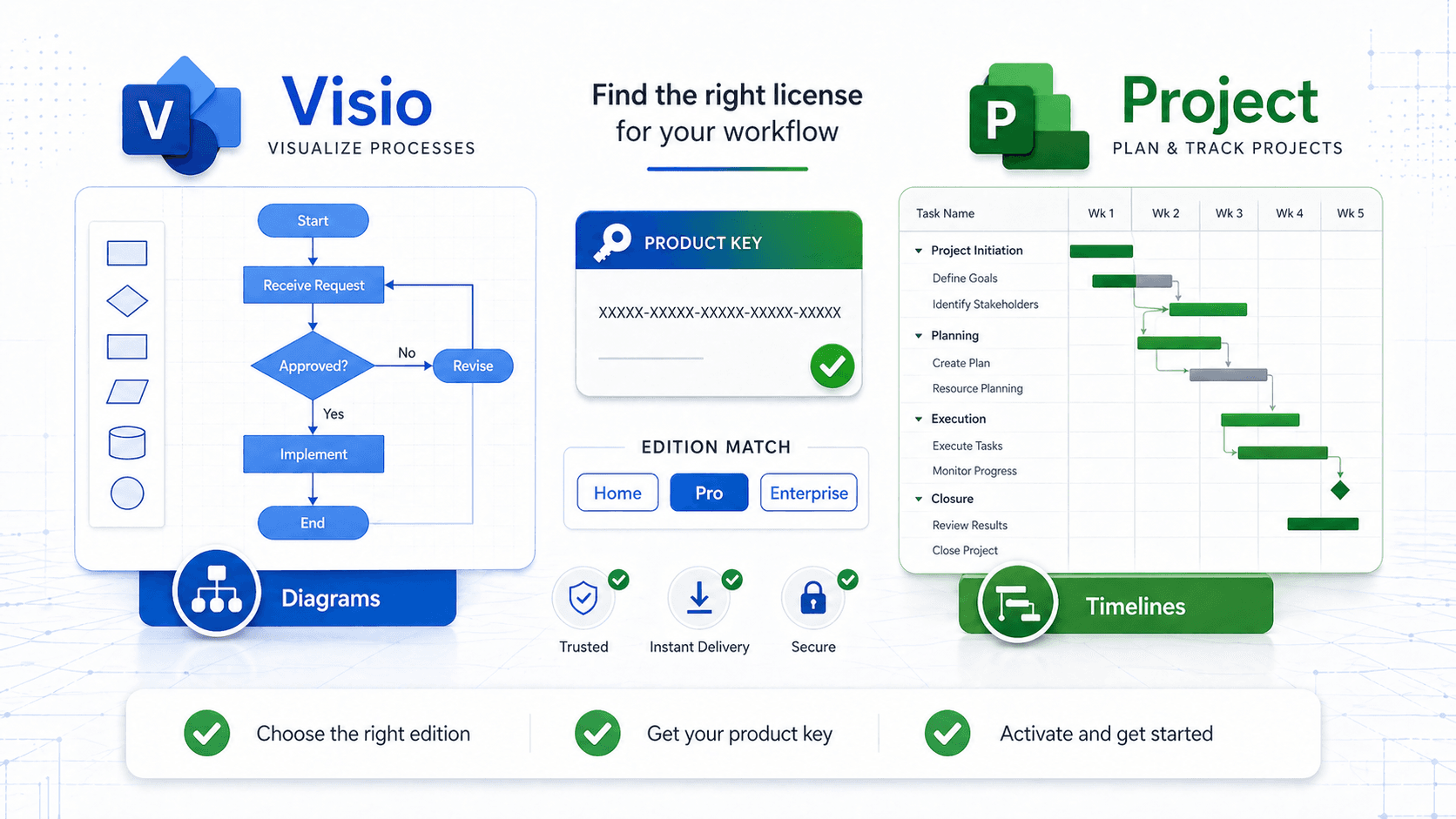
Match the edition to the way you work
Project Standard is usually enough for straightforward schedule management. Project Professional is better when you need more advanced planning features or a professional project environment.
Visio Standard is useful for everyday diagrams and business visuals. Visio Professional is stronger for technical diagrams, data-linked visuals, and more demanding documentation work.
The right choice is not always the newest or most expensive one. It is the edition that matches the files you need to create and the version your team expects.
Check your Office environment
Project and Visio installation can be affected by existing Office installations. In some cases, architecture and channel compatibility matter.
Close Office apps before installing and follow the installer prompts for the selected edition.
If Office is already installed, check whether it is 32-bit or 64-bit before adding Project or Visio. Keeping the same architecture reduces installer conflicts.
Plan activation before reinstalling
Before replacing an existing Project or Visio installation, record the version that is currently installed and confirm which product you are buying.
Remove trial versions or mismatched editions if the installer asks you to. Running two similar editions side by side can confuse activation and shortcuts.
After installation, open the app once and complete activation before handing the device back to the user or starting production work.
Keep activation details
Store the delivered key, product name, and order number after checkout.
If activation requires help, support can resolve issues faster when you include screenshots or exact error messages.
For business use, also keep the purchase date and activated device name in your internal records. It makes later audits, device changes, or support requests easier to handle.