Buying Guide / 9 min read
How to Buy a Digital License Key and Find Your Order
Follow the complete getpckey checkout flow, from choosing the right variant to paying with crypto, receiving your credential, and finding it again in Orders.
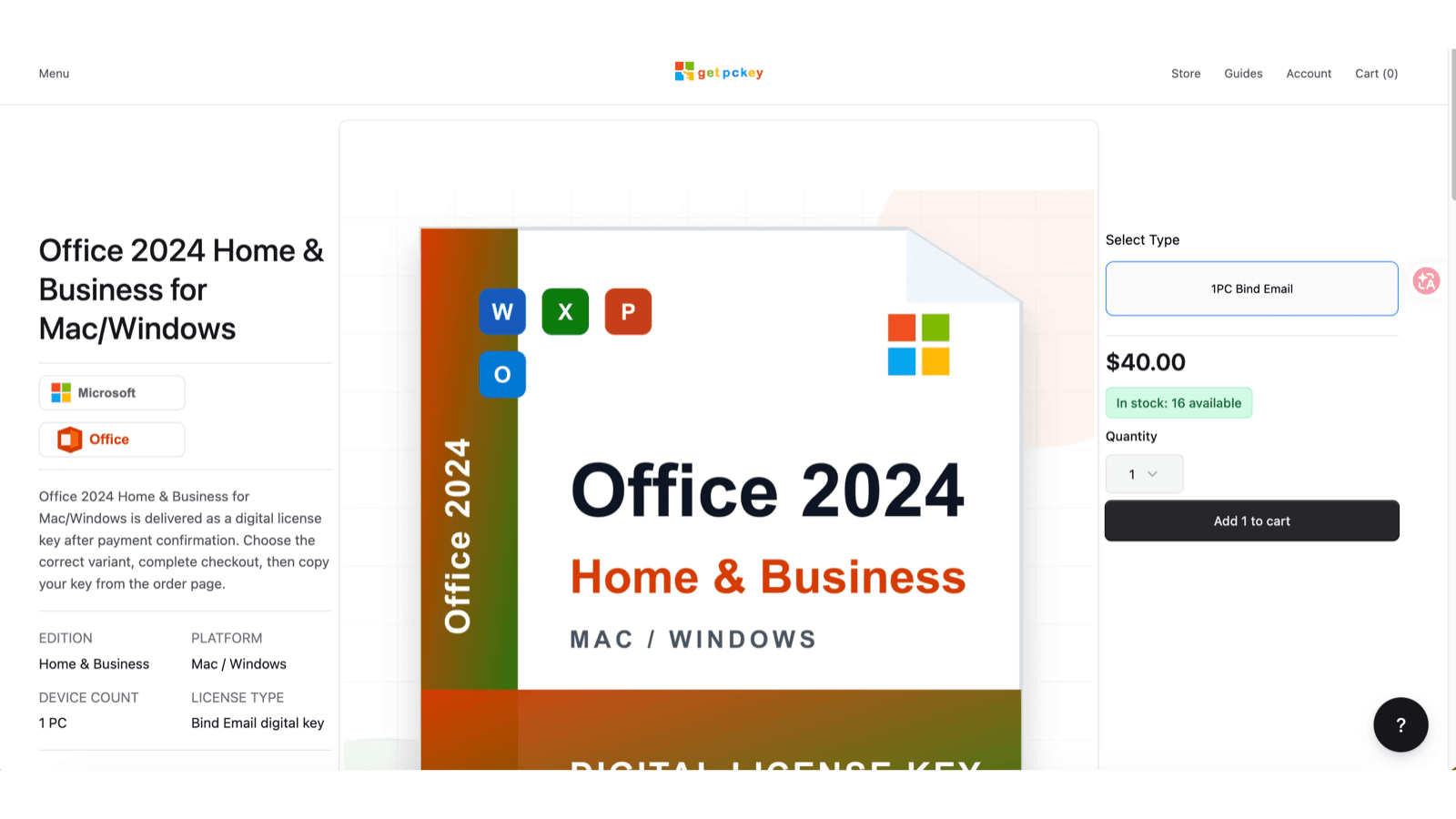
Check the product and variant before adding it to the cart
Interface example: Screenshots in this guide demonstrate the purchase flow. Product availability, prices, payment options, and page layout may change; use the live product and checkout pages for current details.
Start by confirming the product family, year, edition, platform, device count, and license type. Similar names do not mean that two products activate in the same way. For example, a Windows-only edition is not interchangeable with a Mac edition, and a 1 PC variant does not cover several devices.
Read the selected variant carefully. Bind Email means the delivered key is redeemed and associated with a Microsoft account. A Retail or standard product-key variant may use a different activation path. Microsoft 365 Account products deliver an account and password instead of a 25-character key.
Check the price and stock count, choose the quantity, and select Add to cart only after the variant matches the device where you will use it.
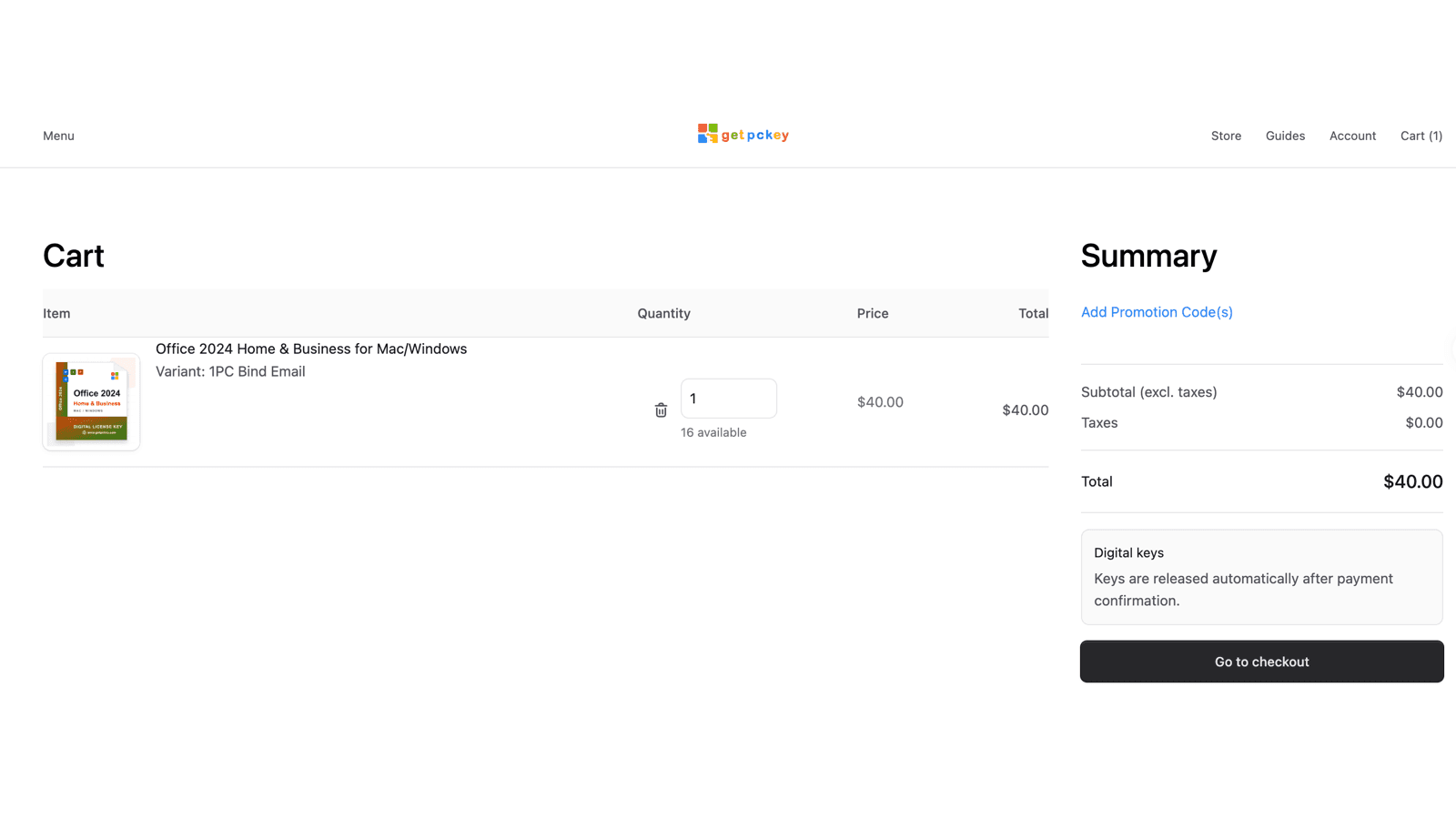
Review the cart
Open the cart and verify the product name, variant, quantity, unit price, taxes, and total. If anything is wrong, change the quantity or remove the item before continuing.
Digital credentials are reserved for the order and released after payment confirmation. Select Go to checkout when the summary is correct.
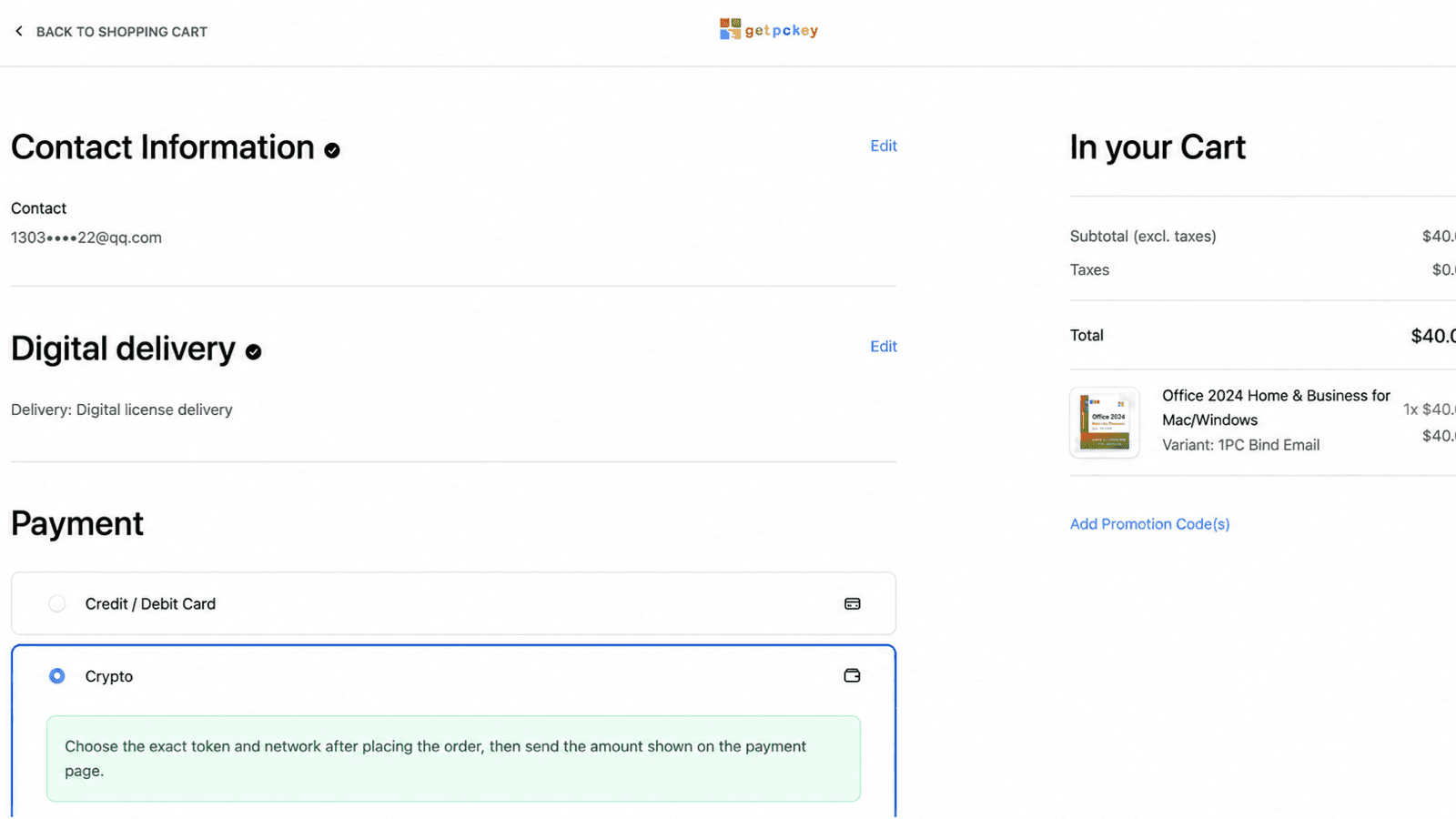
Enter the correct delivery email and choose payment
Use an email address that you can access. The order confirmation, status updates, and original order link are sent to this address. The same email also helps you save a guest order to your getpckey account later.
Confirm that delivery is shown as Digital license delivery. Select Crypto to follow the payment flow in this guide. If Credit / Debit Card is available at checkout, you can select it and follow the secure card form instead; the key-release and order lookup steps after payment are the same.
Before confirming the order, stop and check both the delivery email and the selected payment method. A mistyped email can prevent you from receiving the order link and key email, while the wrong payment method can send you into a different checkout flow.
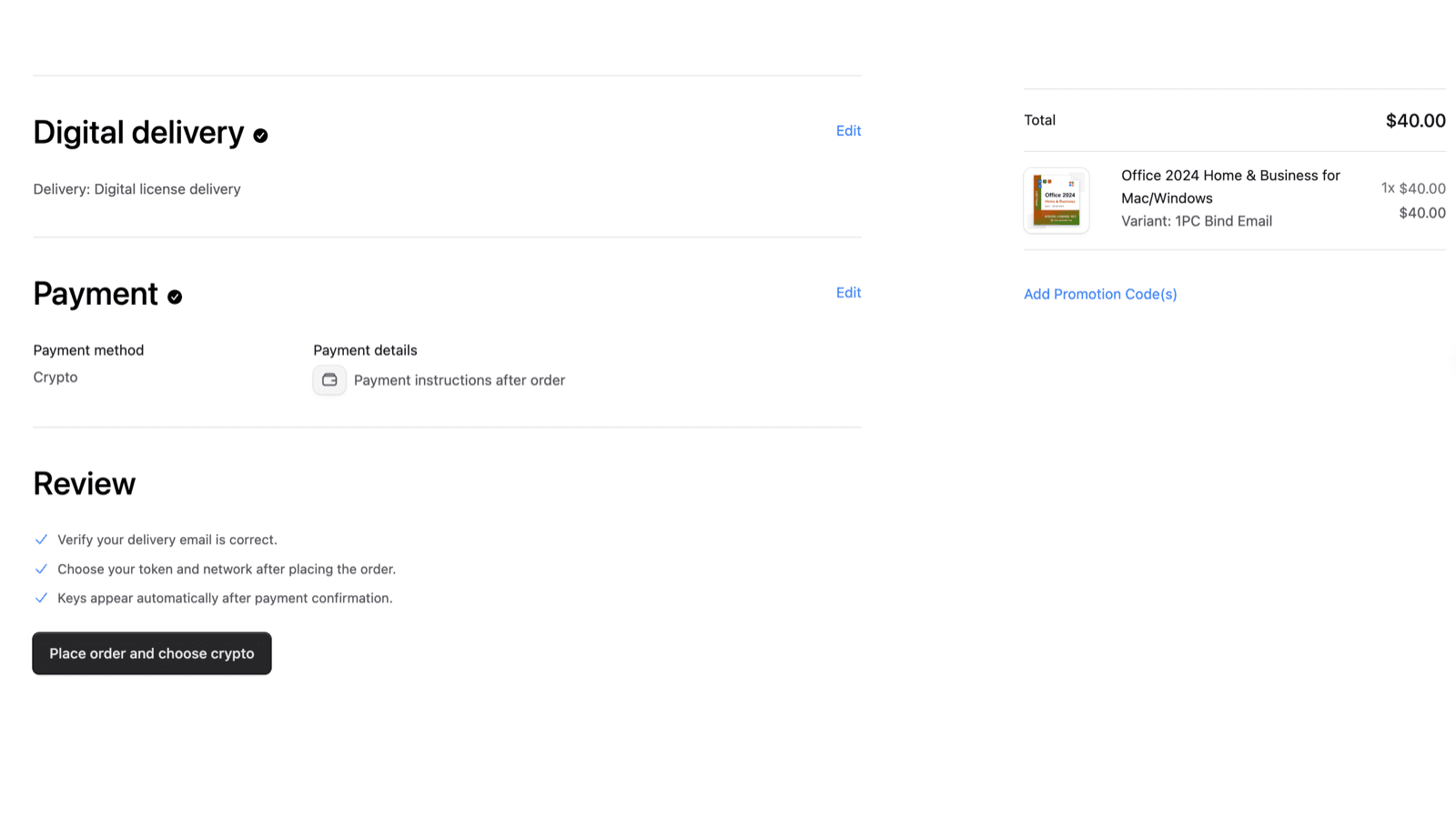
Review and place the crypto order
Before placing the order, check the delivery email, payment method, product, and total one more time. The review area reminds you that the token and network are selected after the order is created and that credentials appear after payment confirmation.
Select Place order and choose crypto. Do not send funds to an address from an older order or screenshot. Each payment page contains the instructions for that specific order.
Choose the token and the exact network
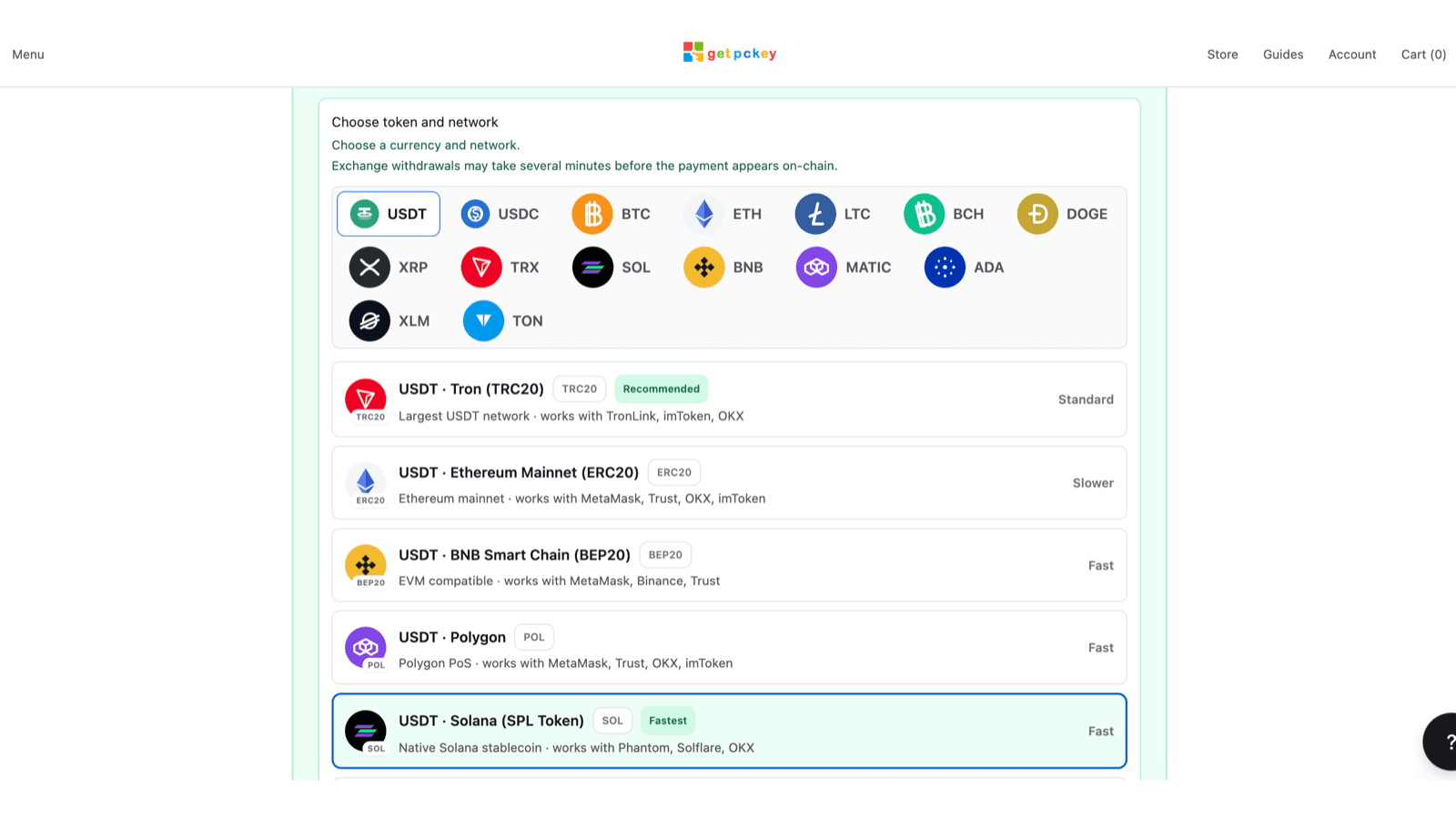
Choose the currency first, then select a supported network. A token can exist on several networks, so USDT TRC20, ERC20, BEP20, Polygon, and Solana are not interchangeable. Your wallet or exchange withdrawal network must exactly match the network selected on the payment page.
Compare the network label on both screens before confirming the withdrawal. Sending on a different network may permanently lose the funds. Network speed labels are estimates, and an exchange may take several minutes to broadcast a withdrawal.
Before paying, compare three items: the token, the network, and the payment address. The token and network in your wallet must match the order page, and the beginning and end of the destination address must match the address displayed for this order.
Send the exact amount to the displayed address
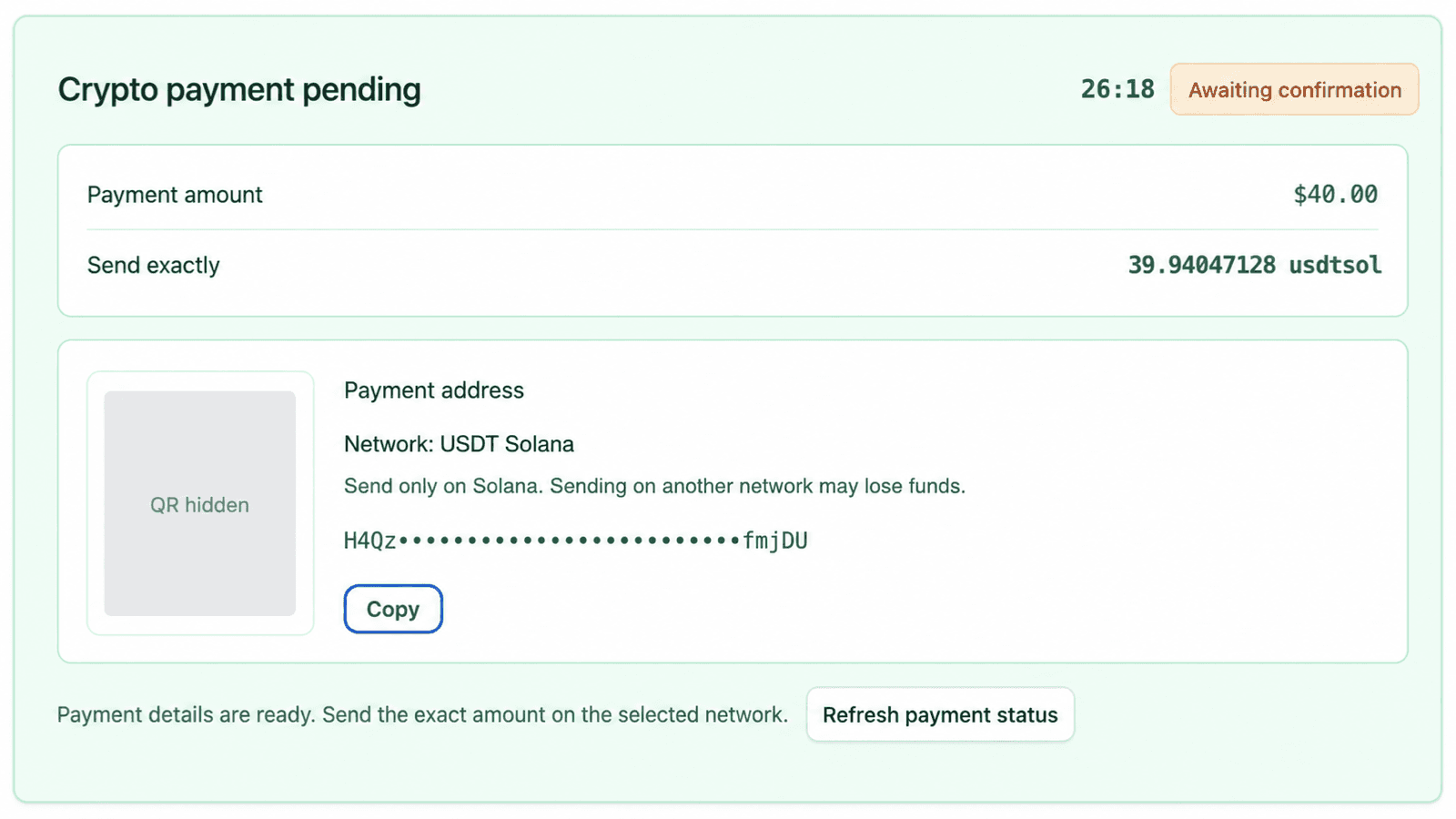
The payment panel shows a fiat order total, the exact crypto amount, the selected network, a payment address, and a QR code. Send the exact crypto amount shown. Your wallet or exchange fee should be paid separately so the receiving address receives the required amount.
Copy the text address or scan the QR code from the live order page, then compare the beginning and end of the address in your wallet before sending. The example QR code below is intentionally disabled and the example address is partially hidden.
Wait for confirmation without paying twice
After sending, leave the order page open while the provider checks the blockchain. The status can remain Awaiting confirmation until the transaction is detected and receives the required network confirmations.
Use Refresh payment status if the transaction has already been broadcast but the page has not updated. Do not send a second payment just because the first one is still confirming.
Even after the payment reaches the displayed address, confirmation and credential issuance can take a few minutes. Wait briefly, then refresh the payment status or the order page. When payment is captured, the Ready panel and delivered key or account credential will appear automatically.
If the payment timer expires, the wrong network was used, the received amount is too low, or the status does not update after the transaction is confirmed on-chain, contact support. Include the order number, selected token and network, transaction ID, amount sent, and a screenshot of the status. Never send a wallet seed phrase or private key.
Copy and store the delivered credential
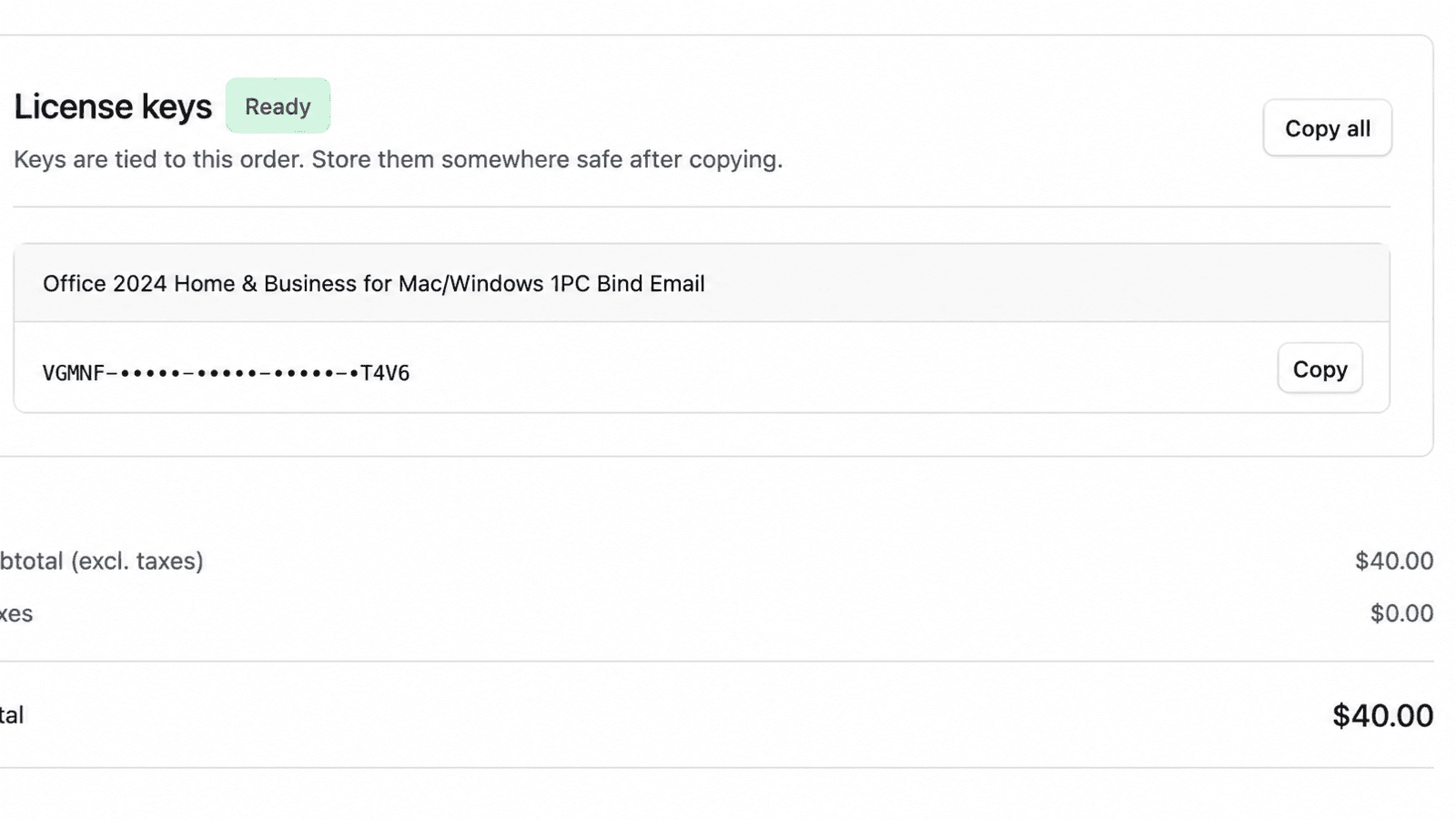
After the payment is captured, the order page changes to Ready and displays the purchased credential. Depending on the product, this can be a 25-character key or a Microsoft 365 account and password shown on separate lines.
Use Copy for one item or Copy all when the order contains several credentials. Save the credential, product name, variant, and order number together in a secure place. The key shown below is partially hidden and cannot be used.
The delivered key or account credential is also sent to the checkout email. Keep that message and the original order link as a second way to recover the purchase details.
Find the credential again from Account and Orders
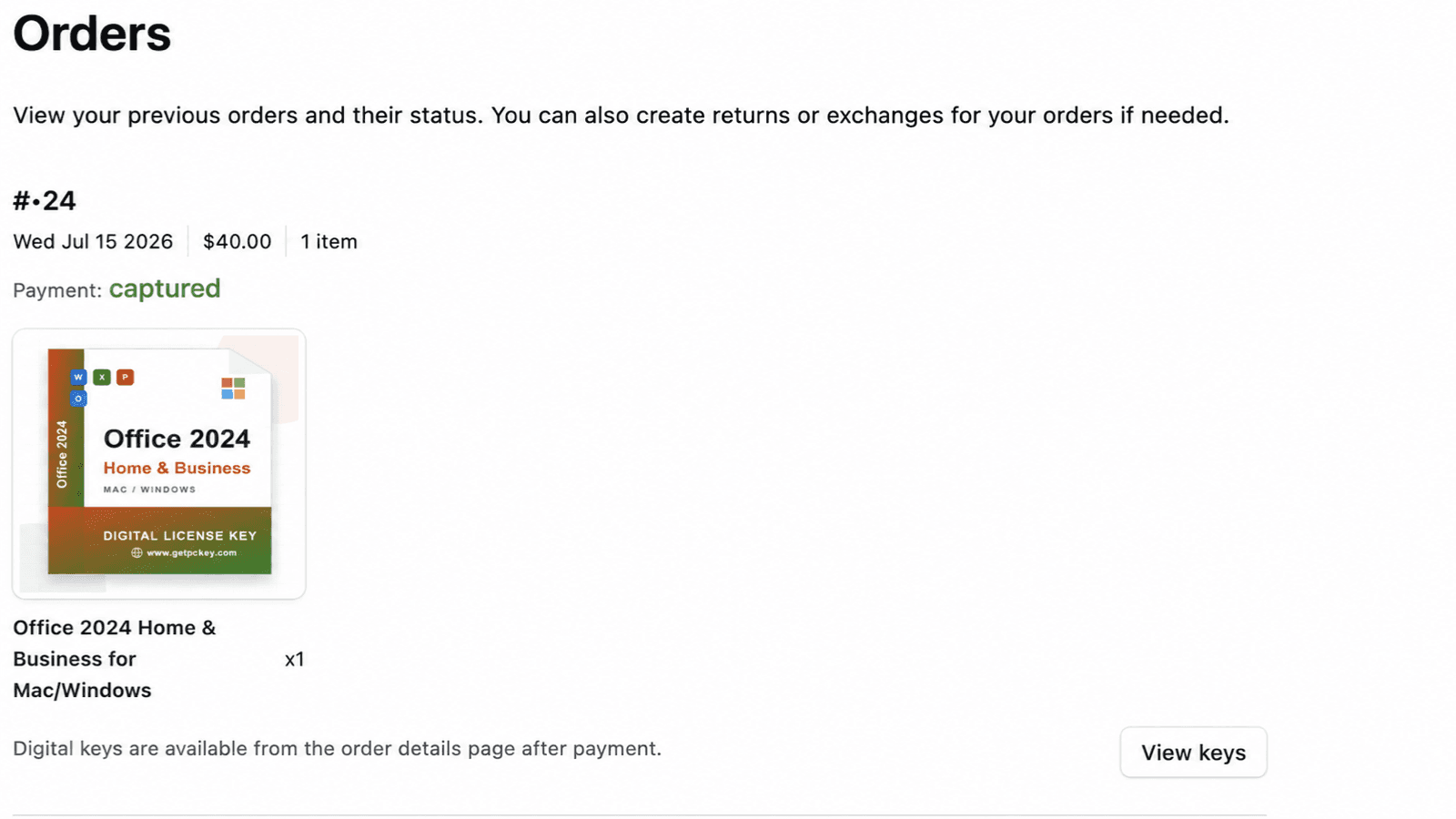
Sign in to getpckey with the email used at checkout. Open Account, choose Orders, locate the captured order, and select View keys. The order details page contains the delivered credentials and payment summary. Signing in with the checkout email permanently saves eligible purchase information in Orders, so you can return to the order without relying only on the guest confirmation page.
If you checked out as a guest, keep the original order link from the confirmation email. Sign in or create an account with the checkout email to save eligible orders permanently. A protected guest order may require the original order link before it can be viewed.
Know when to contact support
Contact support if payment is confirmed but the credential remains delayed, the delivered item does not match the ordered variant, or activation fails on the correct product and edition.
Send the order number, product name, selected variant, payment transaction ID when relevant, and the exact activation error or screenshot. Do not publish or send passwords, full keys, wallet recovery phrases, or unrelated personal information in a public channel.