Activation / 10 min read
How to Activate Your Product: Key, Bind Email, and Microsoft 365 Account
Identify the credential delivered with your order, then follow the correct Windows, Bind Email, Office, Project, Visio, or Microsoft 365 account activation path.
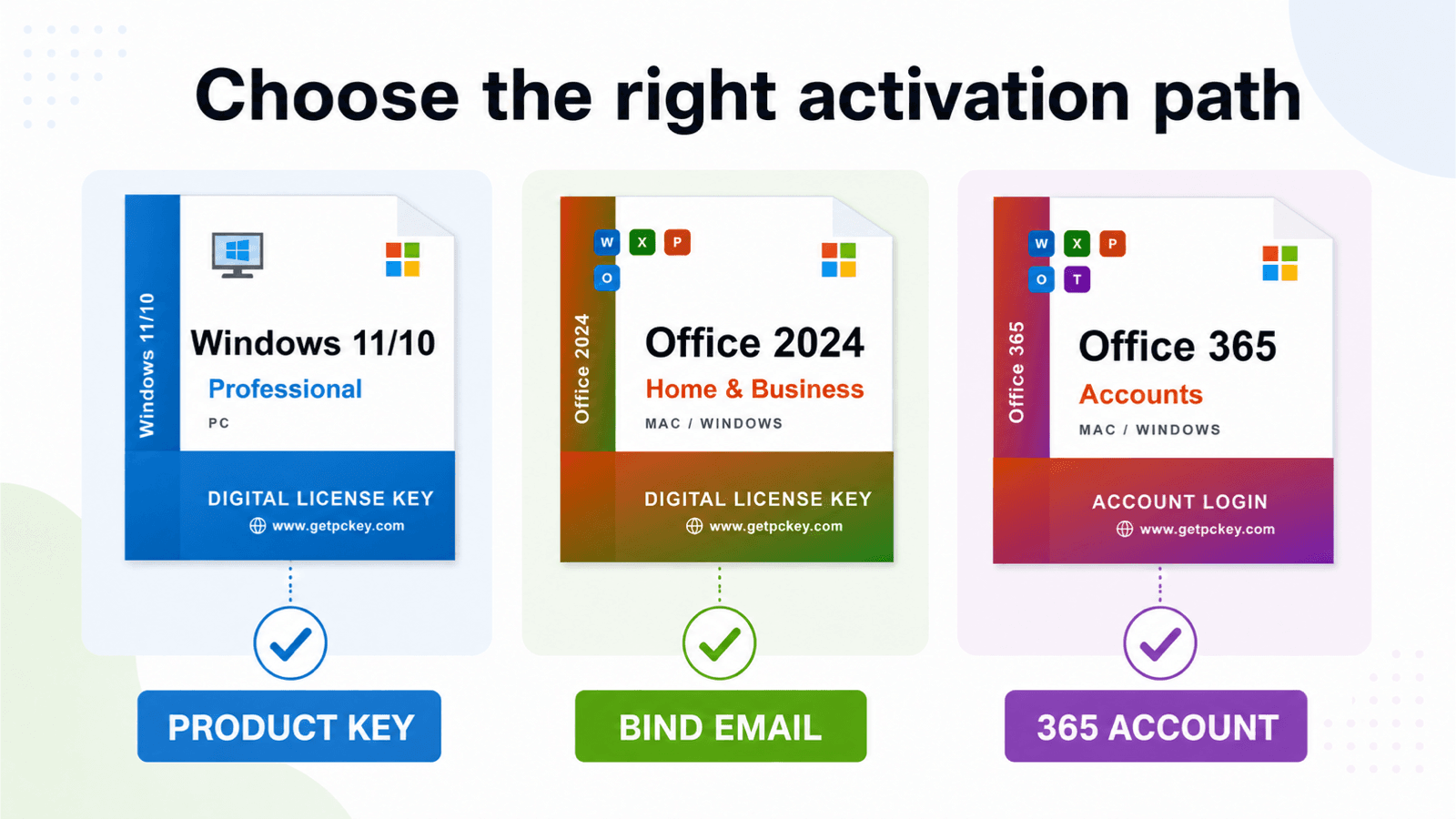
Identify the credential before you start
Open the order details page and read the product name and variant next to the delivered credential. Do not decide from the character format alone.
- A Windows Product Key is normally a 25-character code entered in Windows Activation.
- An Office, Project, or Visio Bind Email key is redeemed once while signed in to the Microsoft account that should own the license.
- A Microsoft 365 Account product provides an account and password. It is used to sign in, not entered into a product-key field.
Before activation, confirm the year, edition, platform, device count, and architecture requirements. Windows Home and Pro are different editions. Office for Mac and Office for Windows are not interchangeable. Project and Visio are separate applications and are not automatically included with Office.
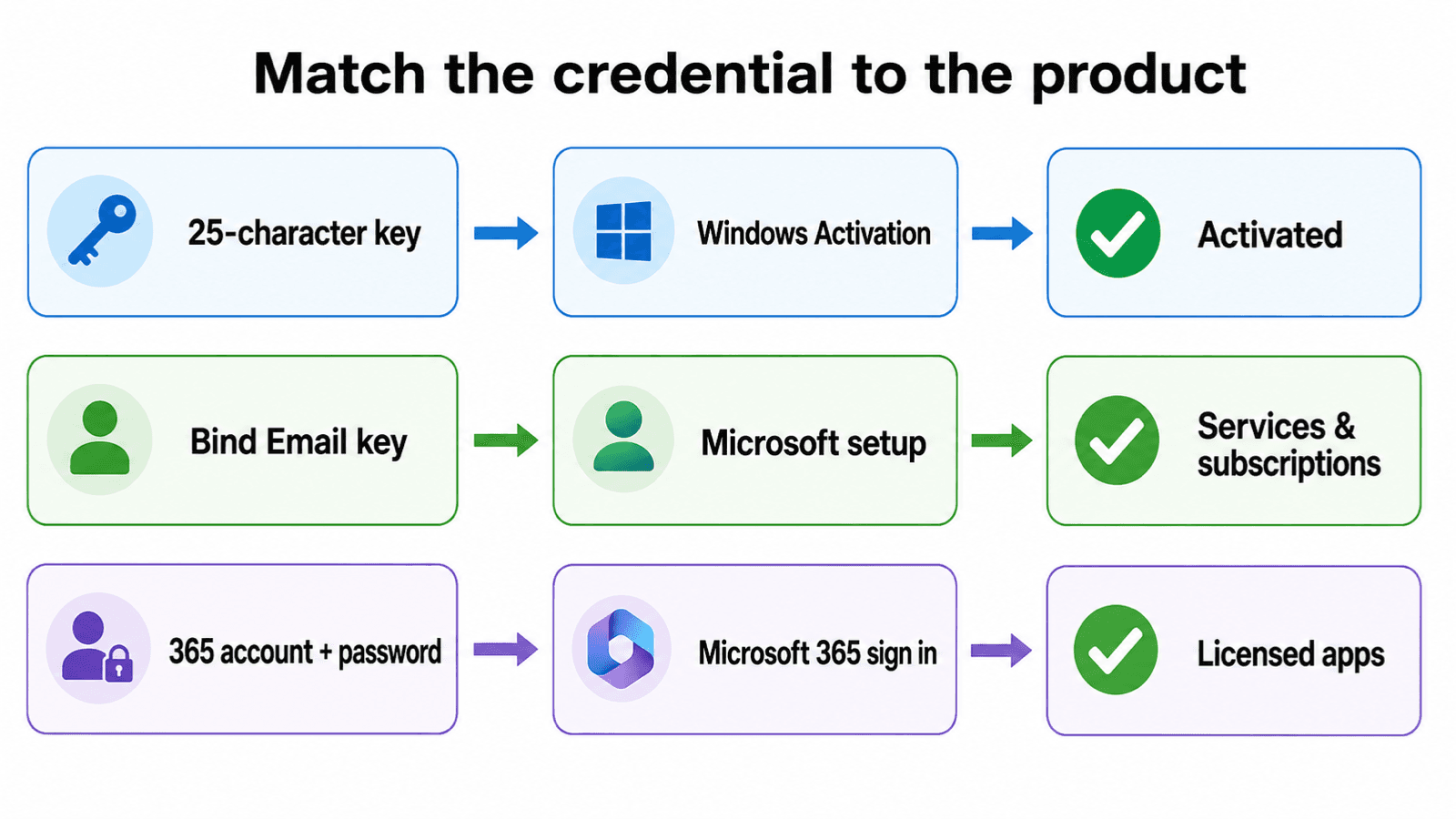
Activate Windows with a product key
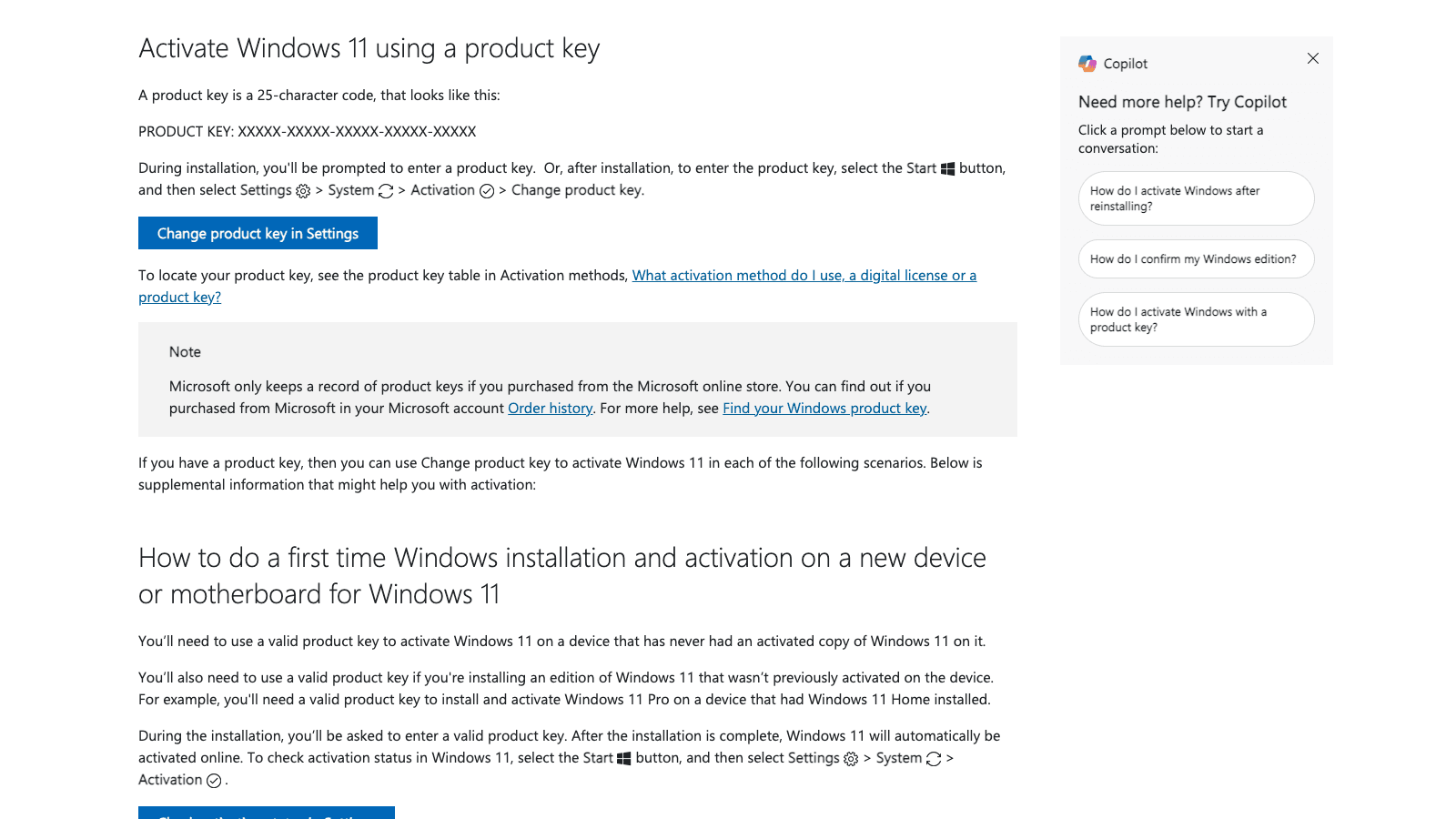
First check the installed Windows edition. On Windows 11, open Start > Settings > System > Activation. The installed edition must match the purchased Home, Pro, or Enterprise product.
Select Change product key, enter the 25-character key, and follow the prompts while connected to the internet. Return to the Activation page and confirm that Windows reports an activated status.
If the computer currently runs Home but the order is for Pro, follow the supported edition-upgrade path rather than repeatedly entering the key. Significant hardware changes can also require the Windows Activation troubleshooter when a digital license was linked to a Microsoft account.
See Microsoft's current Activate Windows instructions for activation status, product-key entry, digital licenses, and hardware-change scenarios.
Redeem an Office or Bind Email key
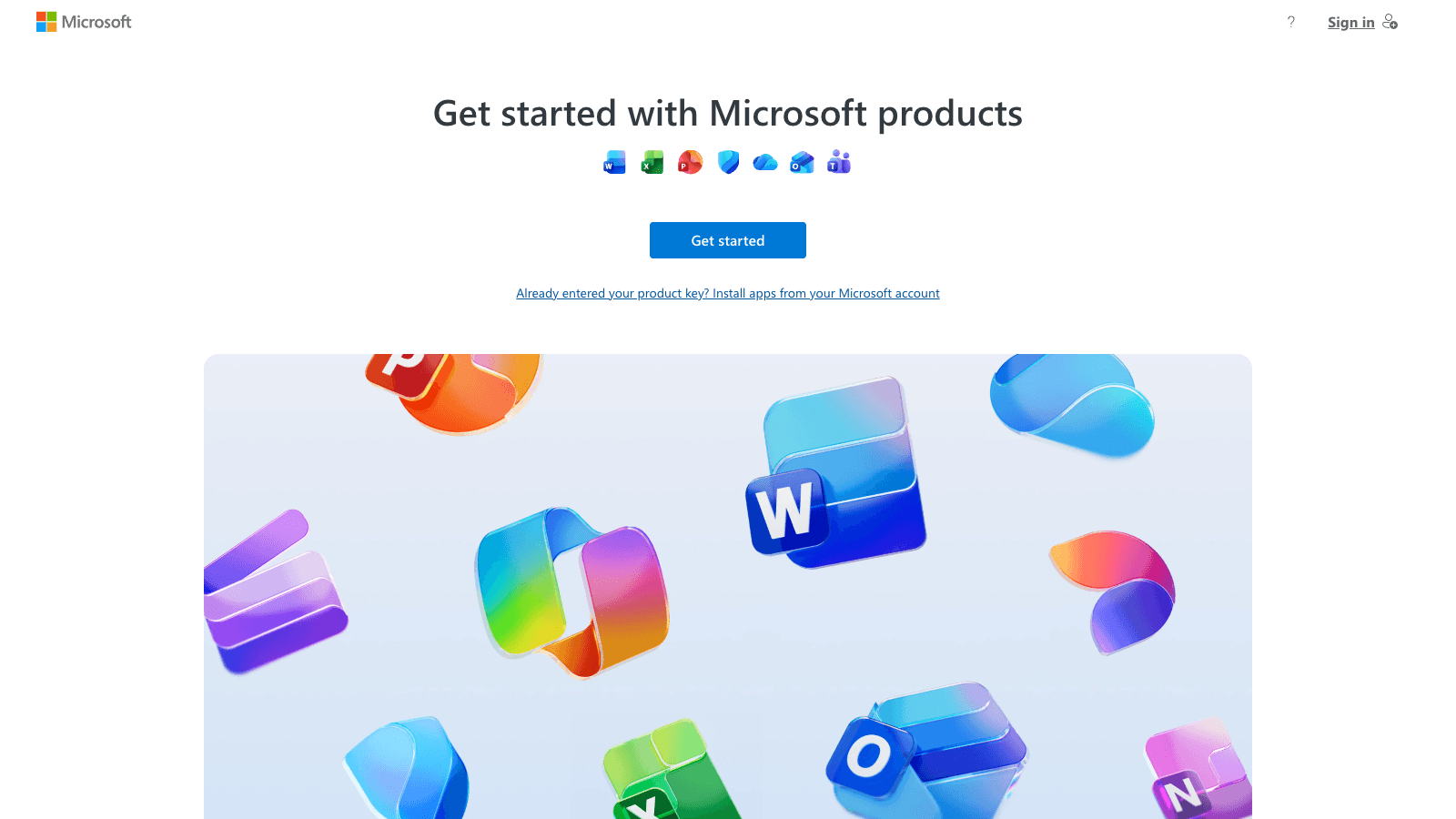
For a new Office 2024, Office 2021, or similar one-time-purchase key, go to Microsoft's Office setup page or Microsoft 365 setup. Sign in with the personal Microsoft account that should own the product, or create one before entering the key.
Enter the key if prompted and complete the redemption. Check the account address before confirming: a Bind Email key becomes associated with that account, and the association is what you use for later installation or reinstallation. A successfully redeemed key normally does not need to be entered again.
Open the Microsoft account Services & subscriptions page, find the product, and choose the available install action. After installation, open an Office app and sign in with the same Microsoft account to complete activation.
Microsoft documents this process in Where to enter your Office product key and Download, install, or reinstall Microsoft 365 or Office 2024.
Install and activate Project or Visio
Non-subscription Project and Visio products often use the same account-association pattern: redeem the matching key with the intended Microsoft account, then install the owned product from the account portal.
Confirm the exact year and edition before installing. Project Standard, Project Professional, Visio Standard, and Visio Professional are different products. Also check whether the existing Office installation uses 32-bit or 64-bit components when the installer requires matching architecture.
Use Microsoft's product-specific instructions for installing Project and installing Visio. Volume-license or employer-program editions can use different activation methods and should follow the organization's instructions.
Sign in with a delivered Microsoft 365 account
A product named Office 365 Accounts or Microsoft 365 Account is different from a Bind Email key. The delivered credential contains an account on one line and a password on the next line. Do not paste either value into an Office product-key box.
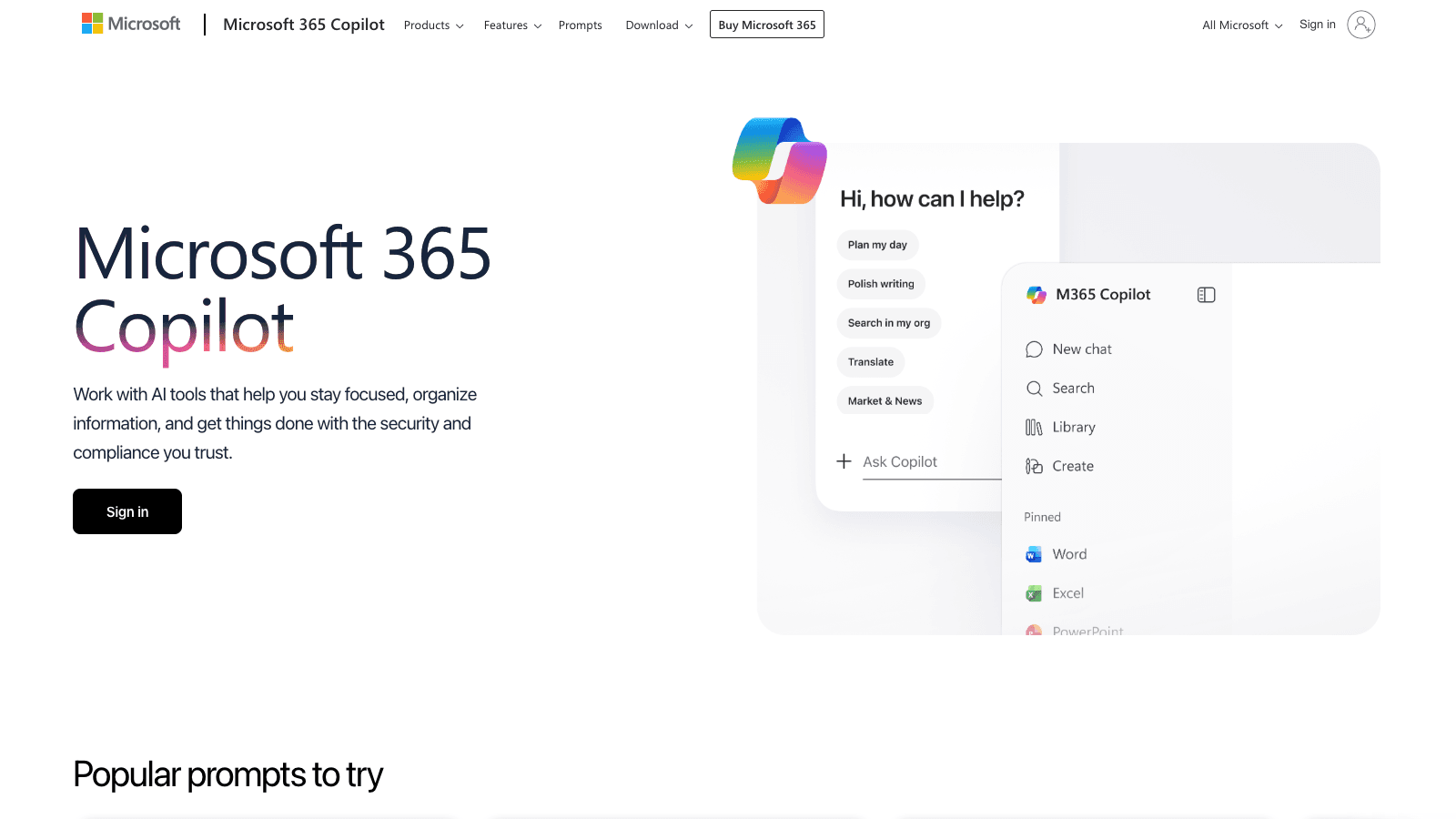
Go directly to Microsoft 365 and select Sign in. Enter the delivered account and password exactly as shown on the order page. Follow any legitimate Microsoft prompt for password update or security information. Never provide the credential on an unrelated website.
After sign-in, open the available apps or use the install option shown for that account. The included applications, desktop-install entitlement, and allowed device count depend on the purchased variant. Do not assume that every Microsoft 365 account includes every app or an unlimited number of devices.
Keep this delivered account separate from your personal Microsoft account unless the product instructions explicitly say otherwise. A Microsoft 365 account login cannot be redeemed into another personal account like a Bind Email key.
Avoid common account and activation mistakes
- Do not redeem a Bind Email key while signed in to the wrong Microsoft account.
- Do not enter Microsoft 365 account credentials into a product-key field.
- Do not use a Windows Home key on Pro, or an Office Mac product on Windows.
- Do not install Project or Visio as though they were automatically included in an Office suite.
- Remove conflicting trial or volume-license editions when the installer or support instructions require it.
- Avoid VPN or proxy interference during online activation, and install current system updates before troubleshooting repeated connection errors.
Troubleshoot safely
Save the complete error code and take a screenshot before changing the installation. Confirm the product, edition, platform, signed-in account, and activation route first. If a key says it has already been used, check the Microsoft account's Services & subscriptions page because the key may already be associated with that account.
If the correct credential still fails, contact support with the getpckey order number, product and variant, operating-system version, and exact activation message. Mask passwords and unrelated personal information in screenshots. Never send a Microsoft password, authentication code, recovery code, wallet seed phrase, or private key to support.